Enlever Numéro De Page Page De Garde Word
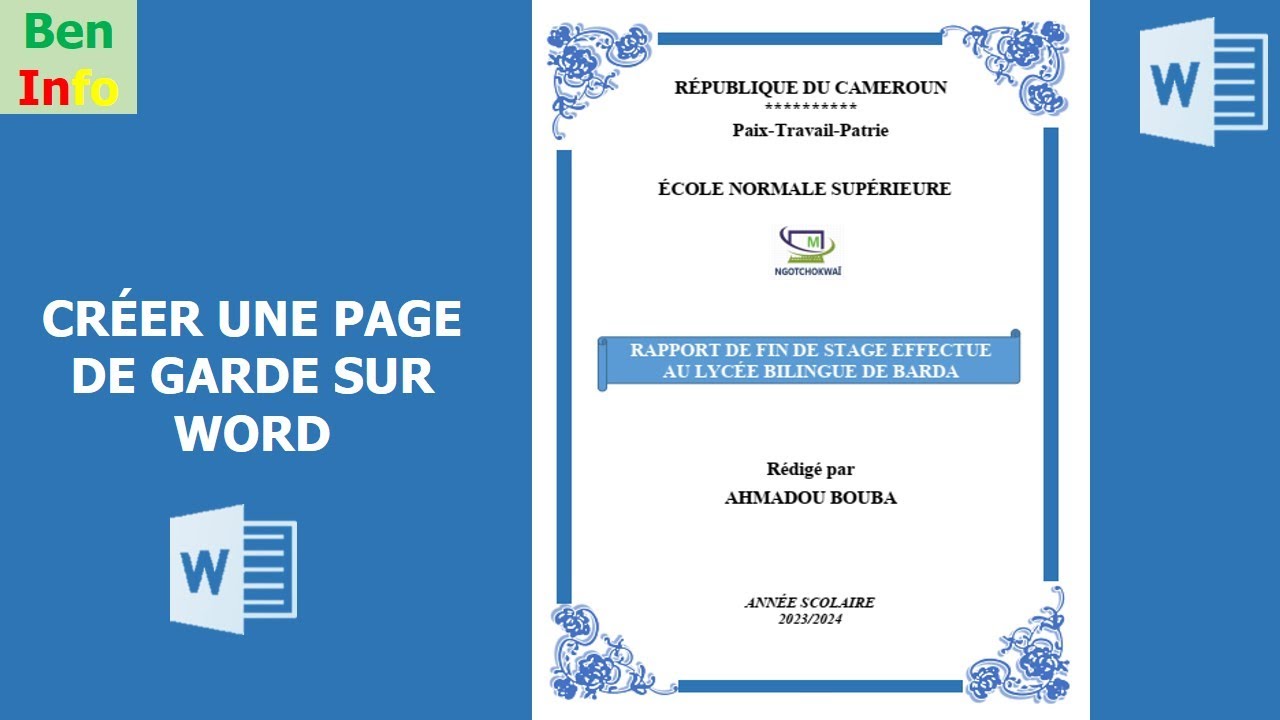
Okay, imagine this. Last night, I was burning the midnight oil (figuratively, of course, because fire hazards and laptops don't mix), finishing a presentation. It was slick, polished, ready to wow. Except… the dreaded page number. Staring back at me from my pristine, carefully designed cover page. Seriously, Word, why you gotta do me like that?
That little digital gremlin made me realize: plenty of folks probably struggle with this seemingly simple, yet infuriatingly persistent problem. So, here we are. Let's tackle the mystery of removing page numbers from your cover page in Word. No more unsightly numbers ruining your masterpiece!
Breaking the Link: Sections Are Your Friends
The key to mastering this lies in understanding sections. Word automatically treats your entire document as one big section unless you tell it otherwise. Think of sections as individual containers. You can apply different formatting – including page numbers! – to each one. So, to ditch the number on the cover page, we need to create a separate section for it.
Inserting Section Breaks
This is where the magic happens! Follow these steps:
- Place your cursor at the very end of your cover page (or wherever you want the page numbering to start).
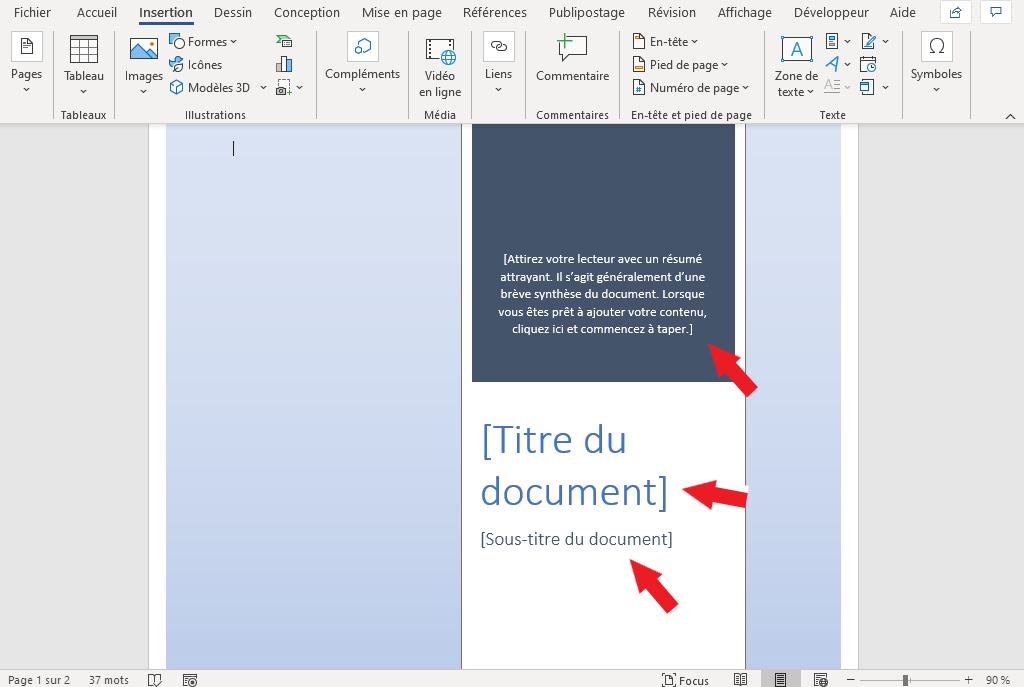
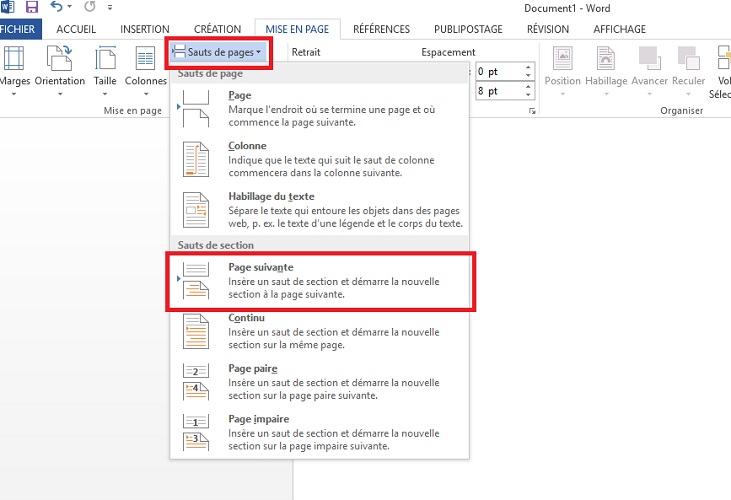
- Go to the "Layout" tab (or "Mise en Page" if you're rocking the French version of Word).
- Click on "Breaks" (or "Sauts de page") and choose "Next Page" (or "Page suivante") under "Section Breaks" (or "Sauts de section").
- Voilà! You've created a new section.
Pro-tip: If you can’t see your section breaks, go to the "Home" tab (or "Accueil") and click the "Show/Hide ¶" button. This reveals all the formatting marks in your document, including section breaks. This button is your best friend when troubleshooting wonky formatting issues. Seriously, use it!
De-Linking the Page Numbers
Now, Word still thinks the page numbers are linked between your cover page section and the rest of the document. We need to sever that connection.
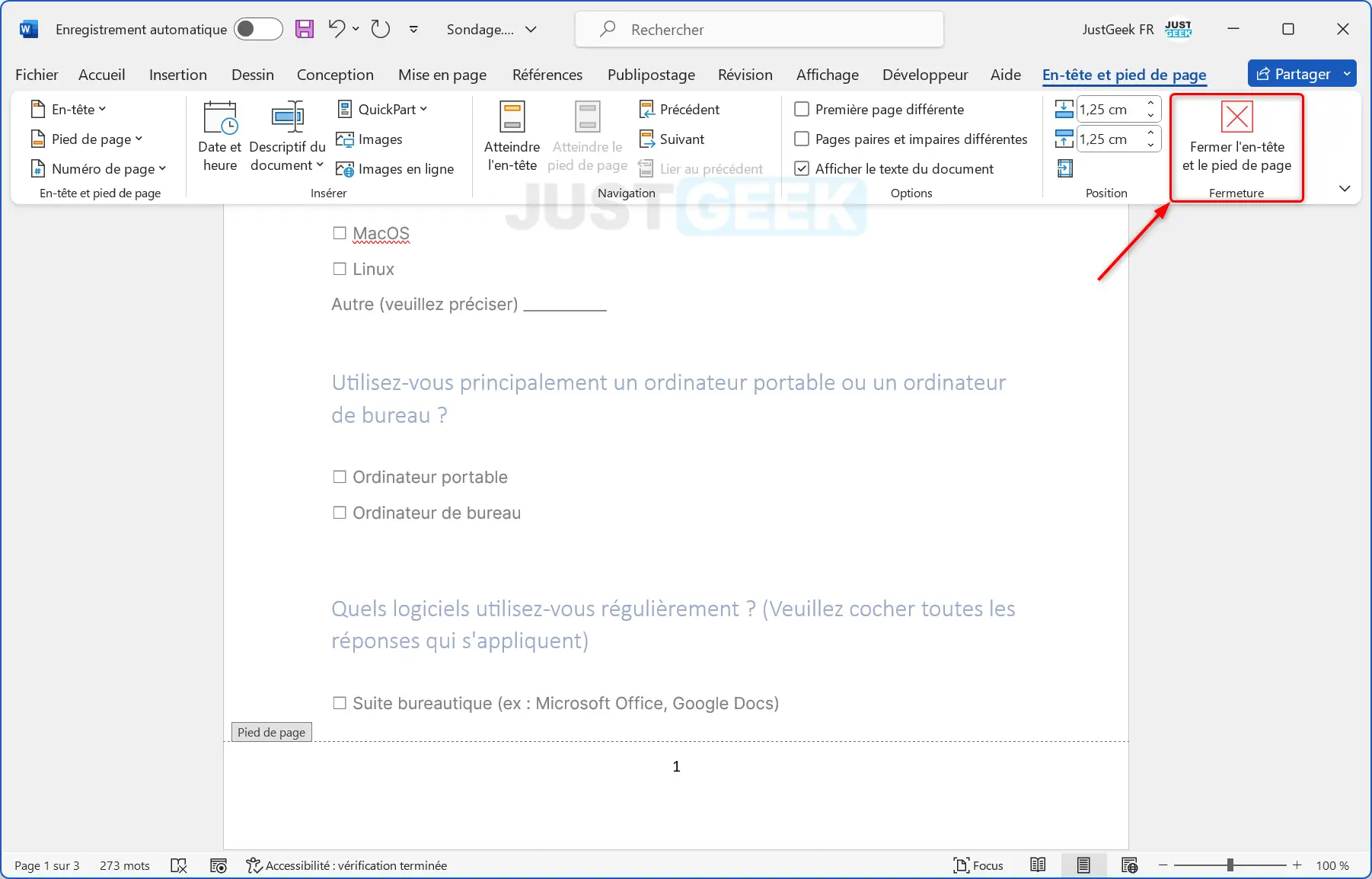
- Double-click in the header or footer area of any page after your cover page (the section you just created). This activates the header/footer editing mode.
- In the "Header & Footer Tools" tab (or the corresponding tab in French), find the "Navigation" group.
- Deselect "Link to Previous" (or "Lier au précédent"). This is the crucial step!
What we've done here is tell Word, "Hey, from this point on, the page numbers are doing their own thing. Don't look back!". Now, you have the freedom to manipulate the page numbers in each section independently. Clever, right?
Removing the Page Number from the Cover Page
The home stretch! Now that your sections are properly separated, you can finally get rid of that pesky page number on the cover.
- Go back to the header or footer area of your cover page (double-click to activate editing mode).
- Simply delete the page number field. It's usually represented by something like "{PAGE}" or a similar code.
- Close the header/footer editing mode.
Et voilà! (Again!) The page number should be gone from your cover page, while remaining intact on the rest of your document. Celebrate with a virtual high-five! You earned it.
A Quick Note on Page Numbering Format
Once you've removed the number from your cover page, you might want to start the numbering on page two with "1" instead of "2". To do this:
- Double-click in the header/footer of page two.
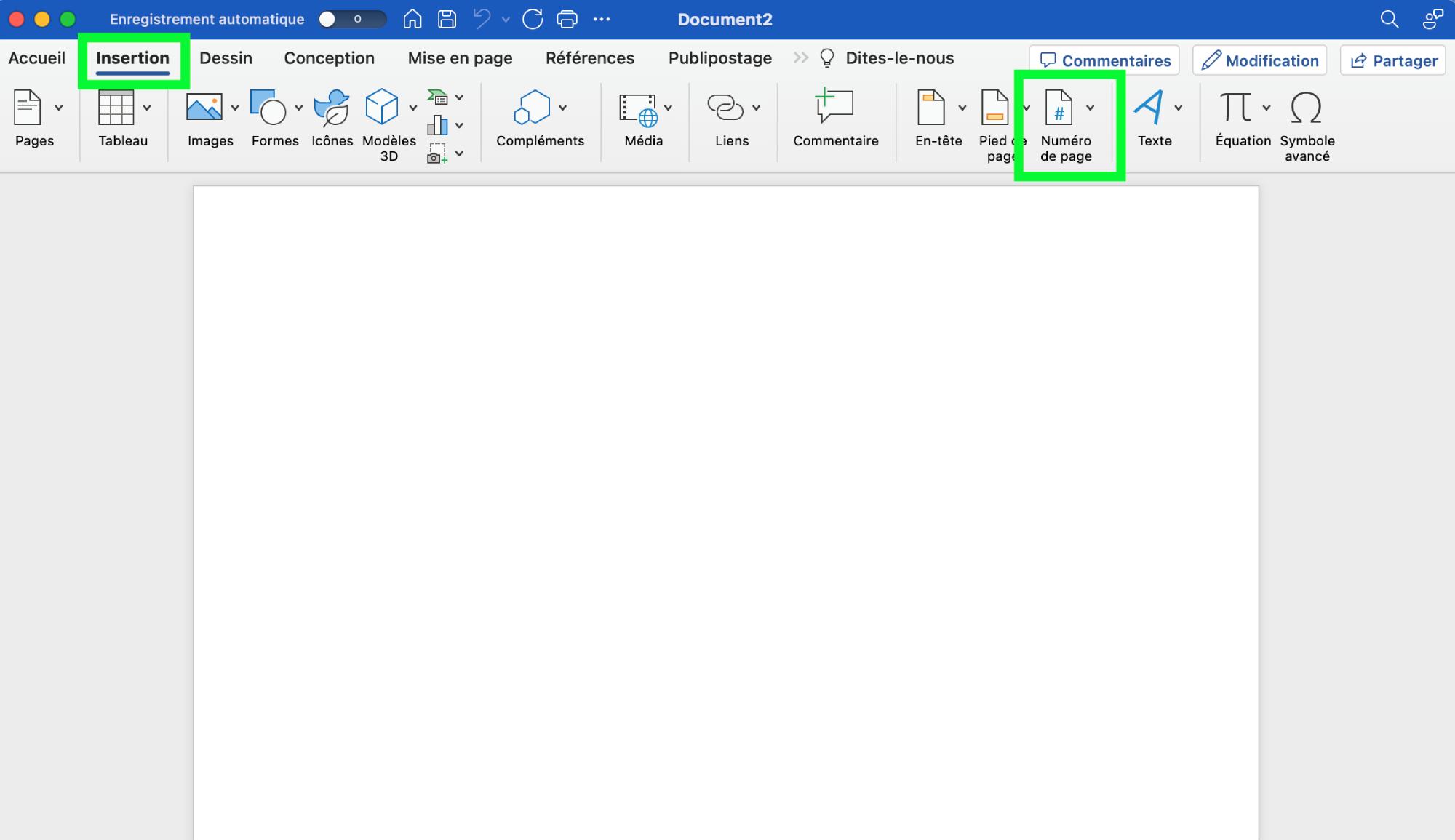
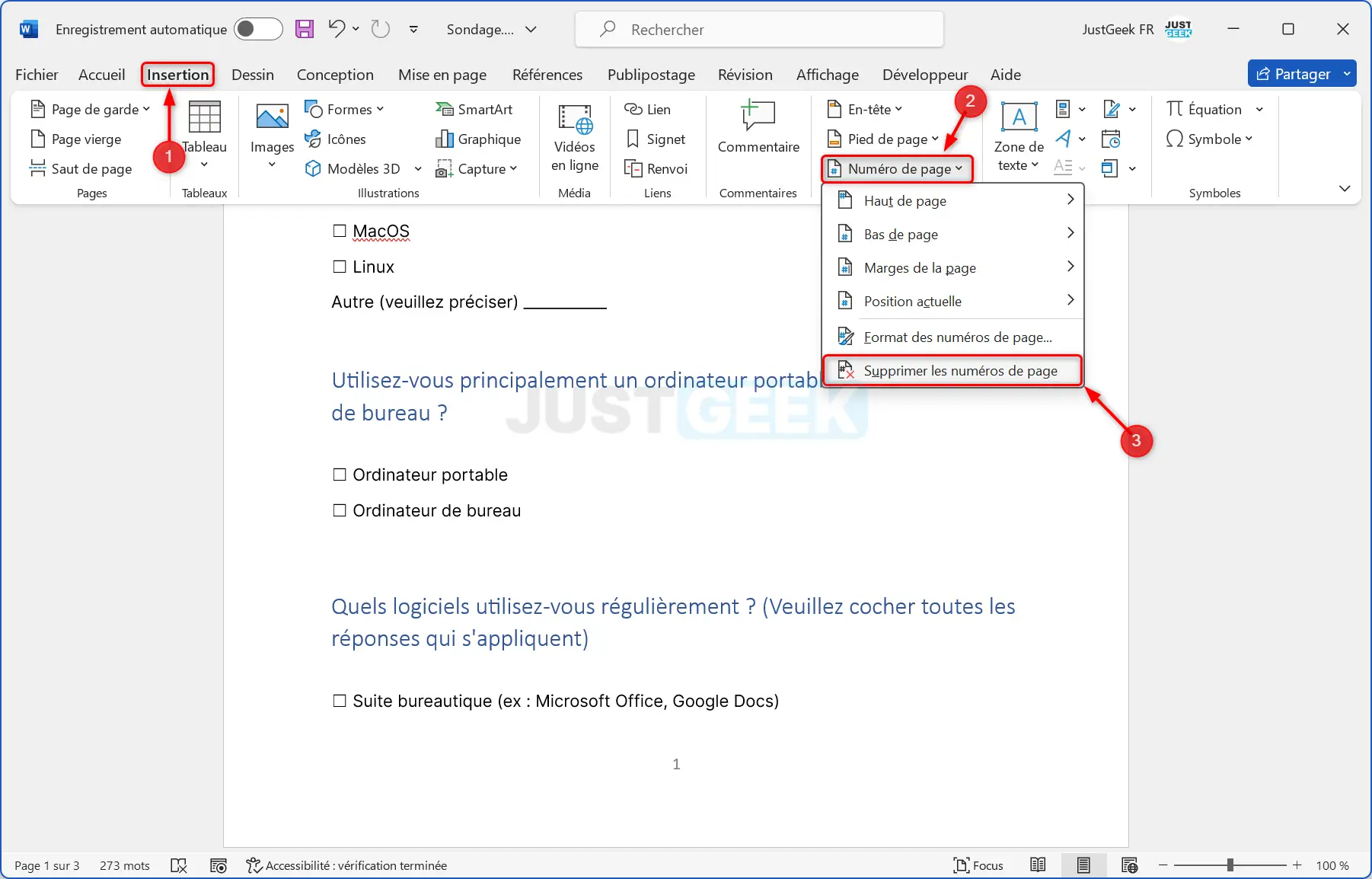
- Go to the "Page Number" button (or "Numéro de page") and choose "Format Page Numbers" (or "Format des numéros de page").
- Under "Page Numbering" (or "Numérotation des pages"), select "Start at" (or "A partir de") and enter "1".
And that’s it! You've conquered the page number beast. Now go forth and create beautifully formatted documents, free from the tyranny of unwanted numbers. Just remember: sections are your friends. And maybe keep a fire extinguisher handy, just in case you actually *do* decide to burn that midnight oil... literally. (Don't.)