Docx Garder La Mise En Page De Code Php

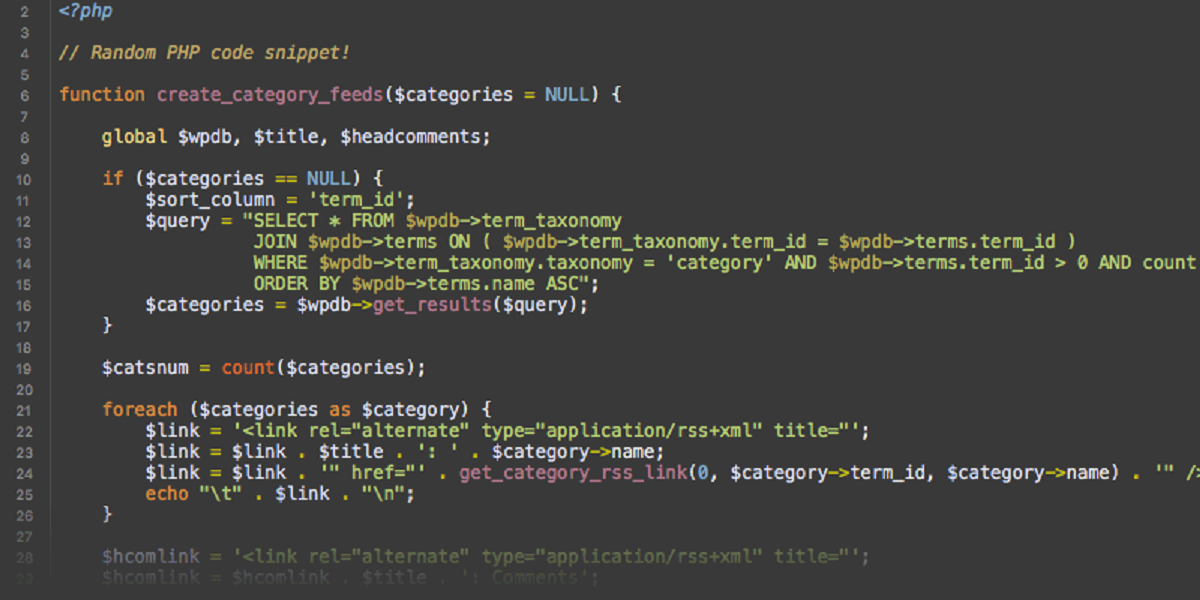
Ok, imagine this: you're prepping for a massive code review. You've got this PHP code, beautiful and intricate, like a digital Swiss watch (except hopefully less likely to spontaneously disassemble). You copy-paste it into a Word document to share with your colleagues, ready for insightful feedback. Then, BAM! Monospace font? Gone. Indentation? Vanished into the ether. Suddenly, your pristine code looks like it was typed by a squirrel on a caffeine binge. Sound familiar? 😅
Yeah, we've *all* been there. Trying to get code to behave nicely in a Docx document can feel like herding cats wearing tap shoes. But fear not, dear reader! There are ways to wrangle that unruly code and make it presentable in your documents. It's not always perfect, but it's a *significant* improvement over the squirrel scenario.
The Docx Dilemma: Why Does It Hate My Code?
Word, bless its heart, is designed for prose. It prioritizes readability for *text*, not code. Code has specific formatting requirements, like consistent indentation and specific fonts, that Word often butchers in its well-intentioned attempts to "help." Think of it as Word trying to "improve" your Picasso with crayon additions. Not ideal.
Why not just use plain text?
Good question! Plain text (*.txt*) *does* preserve the code's layout perfectly. BUT… it lacks the rich formatting options and collaboration features of a Docx. You can't easily highlight lines, add comments directly within the document, or track changes. Plus, let's be honest, sending a plain text file feels... a little 1990s, doesn't it? 😉
Strategies for Docx and PHP Harmony
Alright, let's dive into some practical solutions for keeping your PHP code looking (relatively) sane inside a Docx:
-
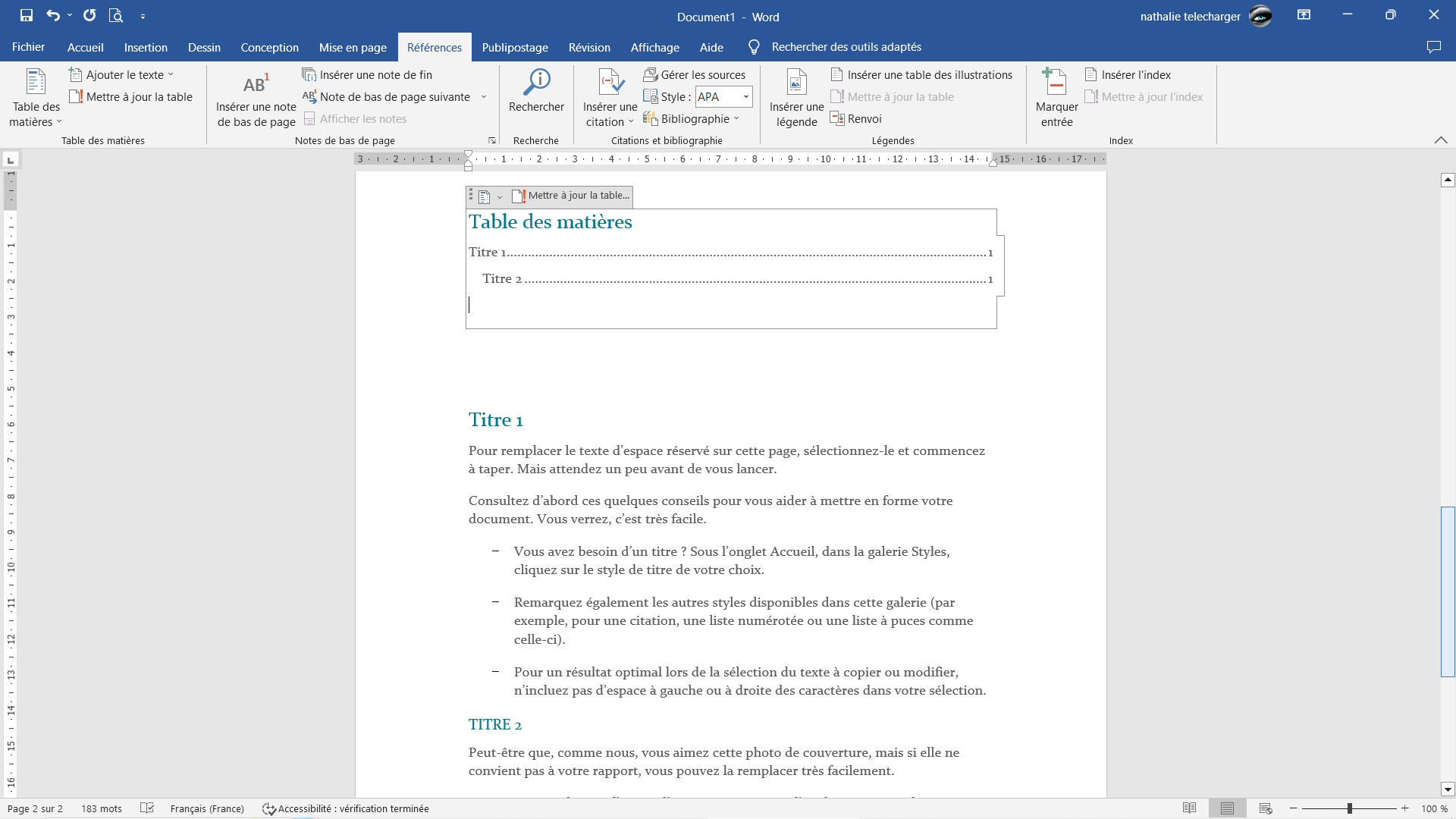
Use Word's "Keep Source Formatting" on Paste: When pasting code, *right-click* instead of just hitting Ctrl+V (or Cmd+V on Mac). Choose the "Keep Source Formatting" option (it might look like a little A with a clipboard). This *sometimes* works, but it's not foolproof, especially for larger blocks of code.
(Side note: Experiment with the different paste options. You might find one that works better for your specific Word version and code editor.)
-
The "Insert Object" Trick: This is a bit clunky, but often produces better results. Go to Insert -> Object -> Text from File. Select your PHP file. Word treats it more like an embedded object, preserving formatting better. Downside: it's not directly editable within the Docx (you'd have to edit the external file). But hey, *trade-offs*, right?
-
Code Highlighting Plugins/Add-ins: Several Word add-ins are specifically designed for code highlighting. These can provide the best results, as they understand code syntax. Search for "code highlighting Word add-in" in your favorite search engine. Some are free, others are paid. Worth exploring if you frequently share code in Docx format. (I'm not endorsing any specific one here – do your research!)
-
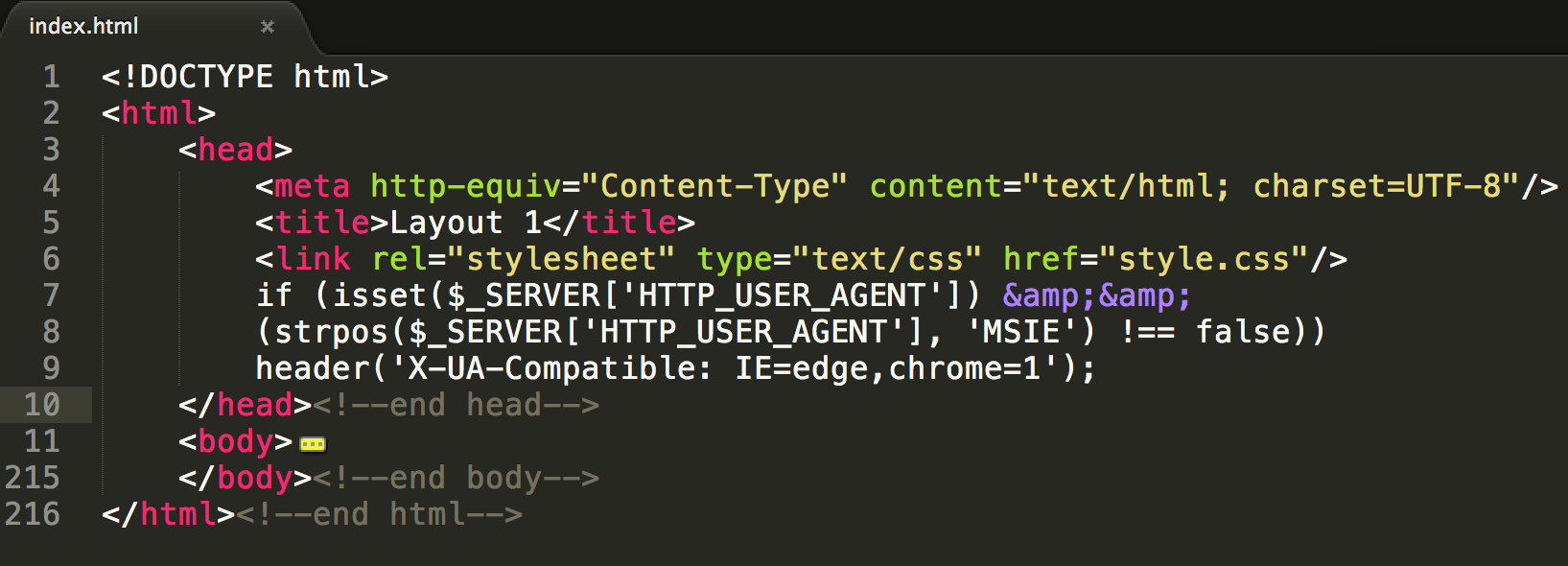
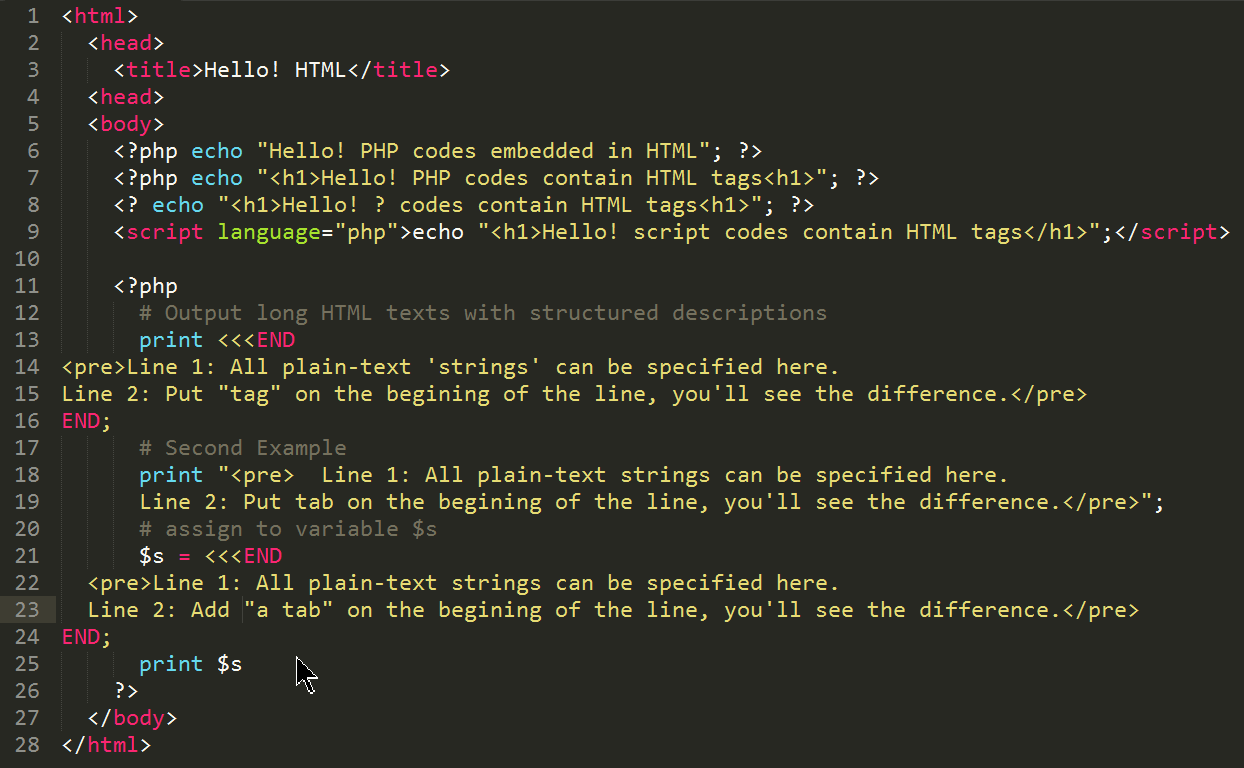
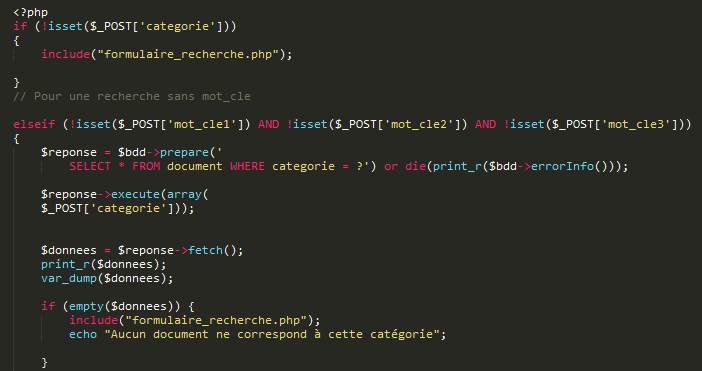
Screenshot Time!: Ok, this is the "if all else fails" option. Take a screenshot of your code from your editor (ensure proper font and indentation are set). Insert the image into your Docx. Pros: It's *exactly* how it looks in your editor. Cons: It's not editable and the quality might degrade upon printing. Also, not searchable within the doc.
-
Manual Formatting: Yes, I know, *shudder*. This is the least desirable option, but sometimes you have to bite the bullet. Select the pasted code and manually change the font to a monospace font (like Courier New or Consolas), adjust the indentation, and (if necessary) add syntax highlighting manually. Tedious, but effective in a pinch.
Beyond Docx: Alternative Collaboration Methods
Let's be honest, Docx isn't the *ideal* medium for code collaboration. Consider these alternatives:
- Version Control Systems (Git): If you're collaborating on actual code development, use Git (with platforms like GitHub, GitLab, or Bitbucket). It's *designed* for code management and collaboration.
- Code Review Tools: Tools like Crucible, Review Board, or even pull requests on GitHub/GitLab provide excellent code review workflows.
- Online Code Editors: Platforms like CodePen, JSFiddle, or Repl.it allow you to share code snippets and collaborate in real-time.
Ultimately, the "best" method depends on your specific needs. But hopefully, these tips will help you navigate the treacherous waters of getting PHP code to play nice with Docx. Good luck, and may your indentation always be correct! 😉
.jpg)