Comment Faire Une Capture Video Avec Windows 11

Okay, picture this: I'm finally, finally, about to beat that super-annoying boss in Elden Ring (yeah, I'm late to the party, sue me!). My heart's pounding, the adrenaline's flowing... and then, BAM! I do it. I actually do it. But did I hit record? Nope. Nada. Zilch. The epic victory remains solely in my memory, doomed to fade into the mists of time. Tragic, right?
That's when I vowed to master the art of screen recording on Windows 11. I mean, we all need to capture those crucial moments, whether it's a gaming triumph (that hopefully you'll actually record!), a hilarious glitch, a work presentation, or even just showing your grandma how to use Zoom (again!). So, how do you do it? Don't worry, I'm here to guide you through the wonders of video capture on Windows 11. It's easier than you think, I promise.
The Xbox Game Bar: Your Secret Weapon (Even if You're Not a Gamer)
Hold on, Xbox? On my computer? Yes! Windows 11 comes with a built-in tool called the Xbox Game Bar. Don't let the name fool you; it's not just for gamers. It's a surprisingly versatile screen recording tool.
Here's the magic combo: Press the Windows key + G. BOOM! The Game Bar appears. See that little camera icon with the dot? That's your record button. Click it to start recording, and click it again to stop. Easy peasy, right?
Pro Tip: Make sure the window you want to record is active *before* you press Windows + G. Otherwise, Windows might get confused and try to record your desktop instead.
You can also start recording immediately with the shortcut Windows Key + Alt + R. This is super handy if you need to quickly capture something without fiddling with the Game Bar interface. (Trust me, I wish I knew this before that Elden Ring incident...).
Where do your recordings go? They're automatically saved in the "Captures" folder inside your "Videos" folder. How convenient is that?
Customize Your Capture (Because One Size Doesn't Fit All)
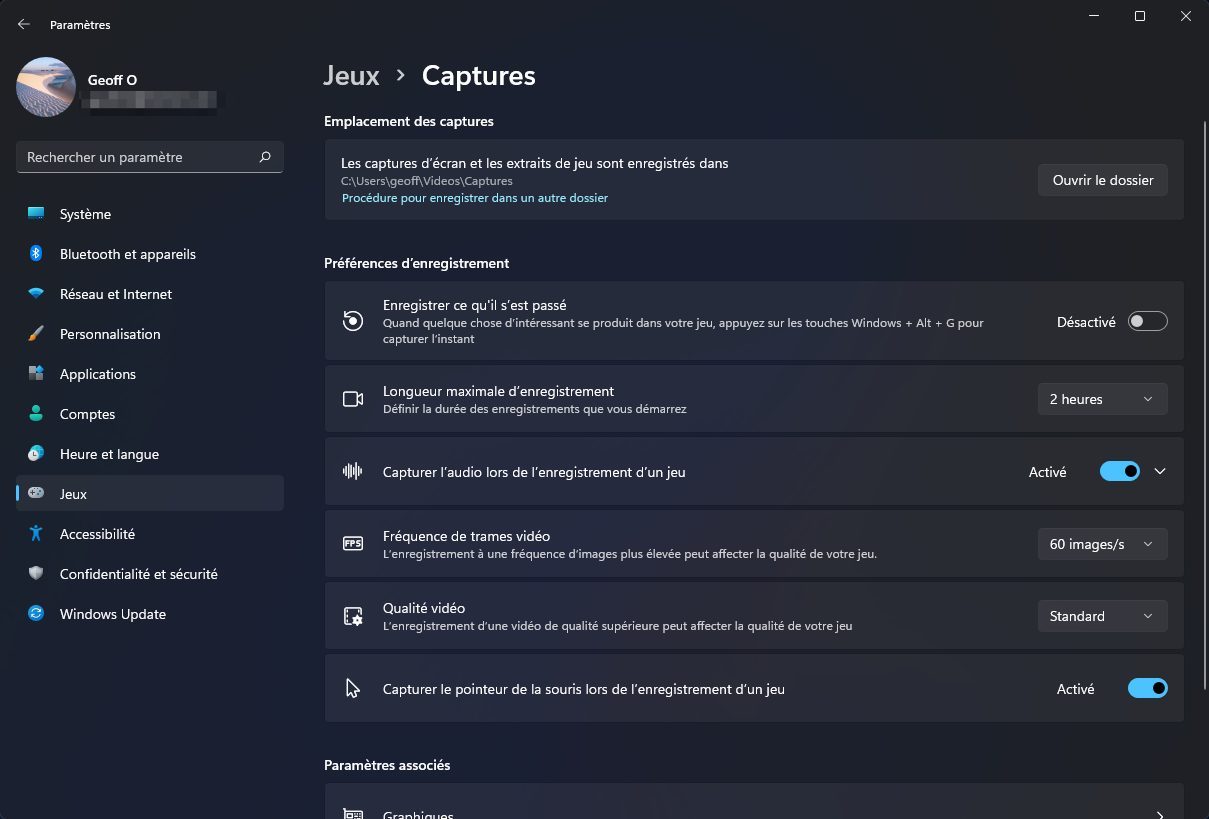
The Xbox Game Bar isn't just a simple "record" button. You can tweak the settings to get the perfect capture. To access the settings, go to Settings > Gaming > Captures.
Here, you can adjust things like:
- Maximum Recording Length: From 30 minutes to 4 hours. Choose wisely, nobody wants to watch four hours of your Excel spreadsheet adventures.
- Audio Quality: Standard or High. High quality is generally better, but it will take up more storage space.
- Video Quality: Standard or High. Same as above!
- Frame Rate: 30 fps or 60 fps. 60 fps is smoother, but again, larger file size.
Experiment with these settings to find what works best for you. Remember, there’s no shame in re-recording something if the first attempt isn’t perfect!
Beyond the Game Bar: Third-Party Options (For the Power Users)
While the Xbox Game Bar is great for basic screen recording, it has its limitations. If you need more advanced features, like editing tools, custom watermarks, or the ability to record specific regions of your screen, you might want to consider a third-party screen recording software.
There are tons of options out there, both free and paid. OBS Studio is a popular (and free!) choice, but it can be a bit intimidating for beginners. Other good options include Camtasia, Filmora, and ShareX. Do some research and find the one that fits your needs and budget.
Side Note: Before installing *any* software, make sure it's from a reputable source. You don't want to accidentally download malware along with your screen recorder.
Final Thoughts (And a Little Encouragement)
So there you have it! Screen recording on Windows 11 is actually pretty straightforward. Whether you're capturing a gaming highlight, creating a tutorial, or just sharing something interesting with a friend, the Xbox Game Bar (or a third-party tool) has you covered.
Don't be afraid to experiment and try different settings. The worst that can happen is you end up with a slightly blurry video, which, let's be honest, is hardly the end of the world. Now go forth and capture all the awesome things happening on your screen! And please, for the love of all that is holy, remember to hit record *before* you beat that boss.