Comment Faire Un Enregistrement Video Avec Windows 10
Salut les amis! Ever wished you could capture that hilarious Zoom call with your belle-mère, or maybe share your mad gaming skills with the world? Windows 10 makes recording your screen easier than ordering a pain au chocolat. Forget complicated software, let's dive into the surprisingly simple world of screen recording with built-in tools. Think of it as having a tiny Steven Spielberg tucked away inside your PC!
Xbox Game Bar: Your Unexpected Recording Studio
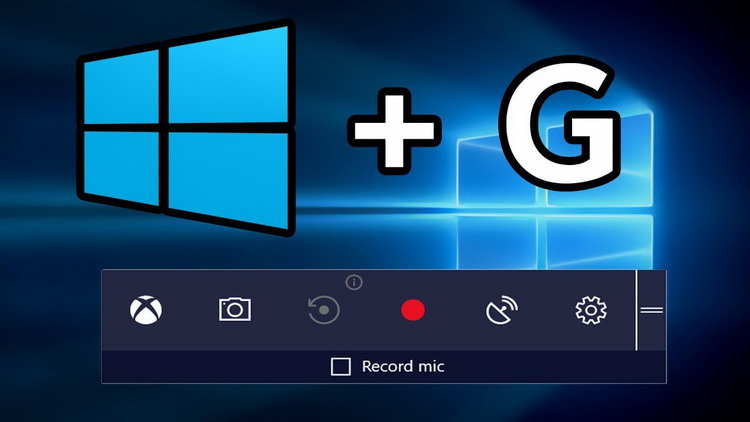
Yes, you read that right! The Xbox Game Bar, ostensibly for gaming, is your secret weapon. Don't let the name fool you; it's more versatile than a Swiss Army knife. To summon this genie, simply press the Windows key + G. A panel will pop up, offering a variety of widgets. Look for the one that resembles a video camera – that's your recording button!
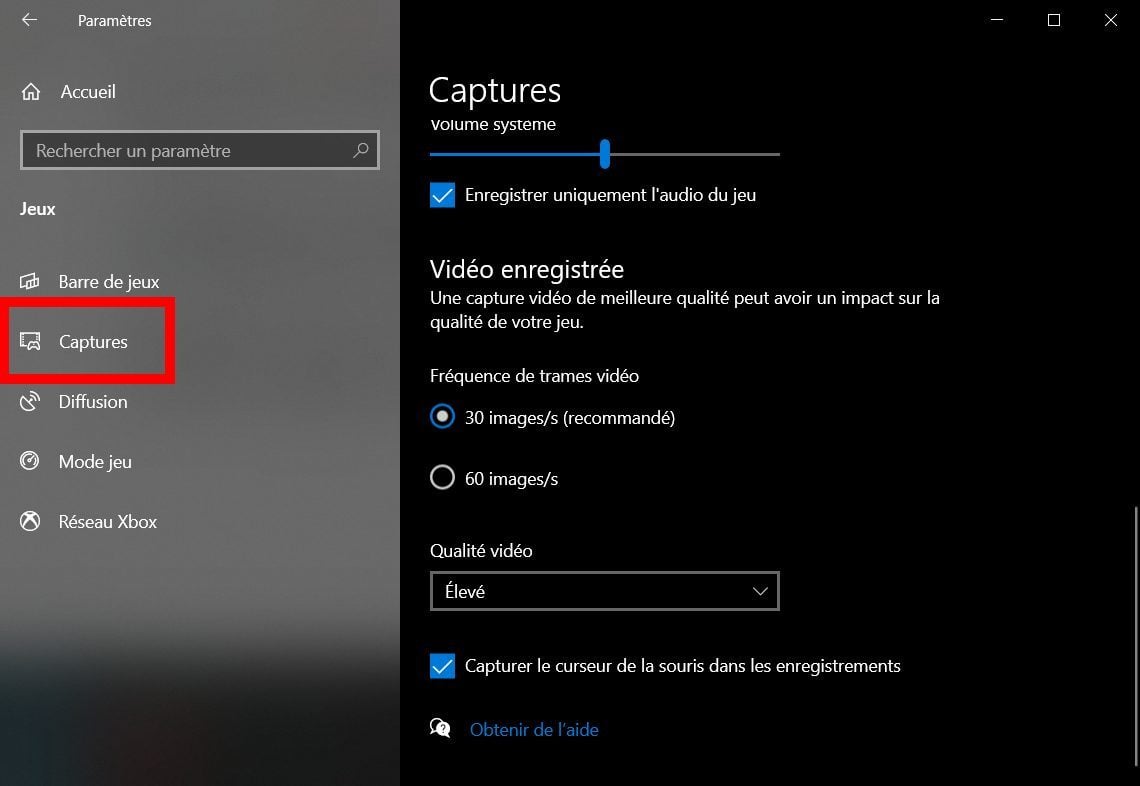
But wait, there's more! Before you hit record, take a peek at the settings. You can tweak things like audio input (microphone, of course, unless you're going for a silent film vibe), video quality, and frame rate. Think of it like setting the mood for your cinematic masterpiece. A higher frame rate (60fps) will give you a smoother, more professional look, but will also eat up more storage space. C'est la vie – a trade-off between quality and convenience!
Pro Tip: The Xbox Game Bar might not work on your desktop or File Explorer. It generally works best within applications. If you're trying to record your entire screen activity, keep reading!
Recording Specific Apps with Ease
Let’s say you want to record a tutorial on how to use Photoshop, or maybe showcase your amazing PowerPoint presentation. The Xbox Game Bar shines here. Simply open the application you want to record, summon the Game Bar (Windows key + G), and hit that record button. A discreet timer will appear, letting you know you're "on air."
Once you're done, just click the stop button (it's the same one you used to start recording), or use the shortcut Windows key + Alt + R. Voila! Your video is saved in your Videos > Captures folder. Now you can unleash your inner YouTuber!
Fun Fact: The Xbox Game Bar was initially intended to be a companion for PC gamers, allowing them to record and share their gameplay moments. It's like having your own personal sports commentator, but for pixels!
Need Full Screen Recording? Use PowerPoint (Seriously!)
Okay, this might sound a little unconventional, but bear with me. PowerPoint, that software you associate with boring office presentations, has a hidden talent: screen recording. Open PowerPoint, go to the "Insert" tab, and look for the "Screen Recording" option. Click it, and you can select the area of your screen you want to capture.
Once you've made your selection, a control panel will appear at the top of your screen. Hit the record button, and PowerPoint will capture everything within that selected area. To stop recording, hover your mouse at the top of the screen again, and the control panel will reappear. Click the stop button.
The recording will then be inserted directly into your PowerPoint presentation. Don't worry, you can save it as a separate video file. Just right-click on the video and select "Save Media as..." Et voilà! Full screen recording achieved, courtesy of the humble PowerPoint.
Tip: Remember to hide your desktop icons and close any unnecessary applications before recording. Nobody wants to see your collection of cat memes while you're trying to explain quantum physics (unless, of course, the cat memes *are* part of the explanation!).
Editing Your Masterpiece (Because Let's Be Honest, We All Need It)
Okay, so you've captured your screen recording. Now what? Unless you're a natural-born orator with perfect timing, you'll probably want to do some editing. Windows 10 has a basic video editor built-in – the "Photos" app. Open your video in Photos, and you can trim, add text, and even apply some basic filters.
For more advanced editing, you might want to consider dedicated video editing software like DaVinci Resolve (which has a free version!) or Adobe Premiere Rush. These programs offer more control over things like color correction, audio mixing, and adding special effects. Think of it as moving from a simple sketch to a full-blown Renaissance painting.
Cultural Moment: Did you know that the Lumière brothers, considered the pioneers of filmmaking, started with simple, unedited recordings of everyday life? Their first film, "Workers Leaving the Lumière Factory," was just that: workers leaving a factory. Sometimes, simplicity is key!
Final Tip: Practice makes perfect! Don't be afraid to experiment with different recording settings and editing techniques. The more you practice, the more confident you'll become in creating your own video content.
So, there you have it! Screen recording in Windows 10 is easier than saying "Bonjour." Whether you're creating tutorials, sharing gaming highlights, or just capturing a funny moment, these tools will help you bring your digital visions to life.
In the whirlwind of modern life, taking a moment to capture and share our experiences is becoming increasingly important. It's a way to connect with others, preserve memories, and even learn new skills. So, go ahead, record something amazing today. Who knows, maybe your video will be the next viral sensation!