
Comment Faire Un Clip Video Avec Photos

Okay, picture this: me, in my pajamas (don't judge!), frantically searching for, like, *any* decent photo of my cat Mittens for her birthday. Why? Because I promised my niece a "super cool" music video dedicated to the fluffball. Yeah, I know, I'm a pushover. But seriously, finding those photos lurking deep within my Google Photos was a *treasure hunt*. Turns out, I had enough material... Now, how to transform that digital pile into a masterpiece...?
That's where the magic of making a music video with photos comes in! It sounds intimidating, but trust me, it's surprisingly easy. Way easier than actually getting Mittens to pose, anyway. So, how *do* you turn a collection of snapshots into a cinematic sensation? Let's dive in!
Choosing Your Weapon (aka Your Editing Tool)
First things first: you'll need a tool to work with. Think of it like choosing your lightsaber... or, you know, your preferred photo editing app. There are tons of options, ranging from totally free to subscription-based.
For the absolute beginners, iMovie (if you're on a Mac) or Google Photos are fantastic starting points. They're usually pre-installed, super user-friendly, and offer basic but effective features like adding music, transitions, and text. Think of them as your training droids – good for learning the basics!
If you're feeling a bit more adventurous (and want to unlock some serious creative power), consider apps like CapCut, VN or even the mobile versions of more advanced programs like Adobe Premiere Rush. These offer more control over things like animation, color correction, and special effects. Prepare to spend some time exploring the features – it's worth it!
(Pro tip: Watch a few tutorials on YouTube for whichever app you choose. Seriously, a quick search can save you hours of frustration.)
Gathering Your Arsenal (aka Your Photos & Music)
Now for the fun part: gathering your materials! This is where you sift through all your photos, videos, and musical choices. Start by creating a dedicated folder to keep everything organized. Trust me, future you will thank you for this.
Selection is key. Don't just throw every single photo in there. Choose the ones that are visually appealing, tell a story, and fit the vibe of the song you've chosen. Think about varying the shots – close-ups, wide angles, action shots (if you have them). Variety is the spice of life... and of music videos!
Speaking of music, choose a song that fits the mood and theme of your photos. Is it a love song? A party anthem? A sad ballad about a missing sock? The song will dictate the pace and energy of your video. Also, be mindful of copyright! Look for royalty-free music or obtain the necessary licenses if you're using copyrighted material. Nobody wants a takedown notice!
The Choreography (aka The Editing Process)
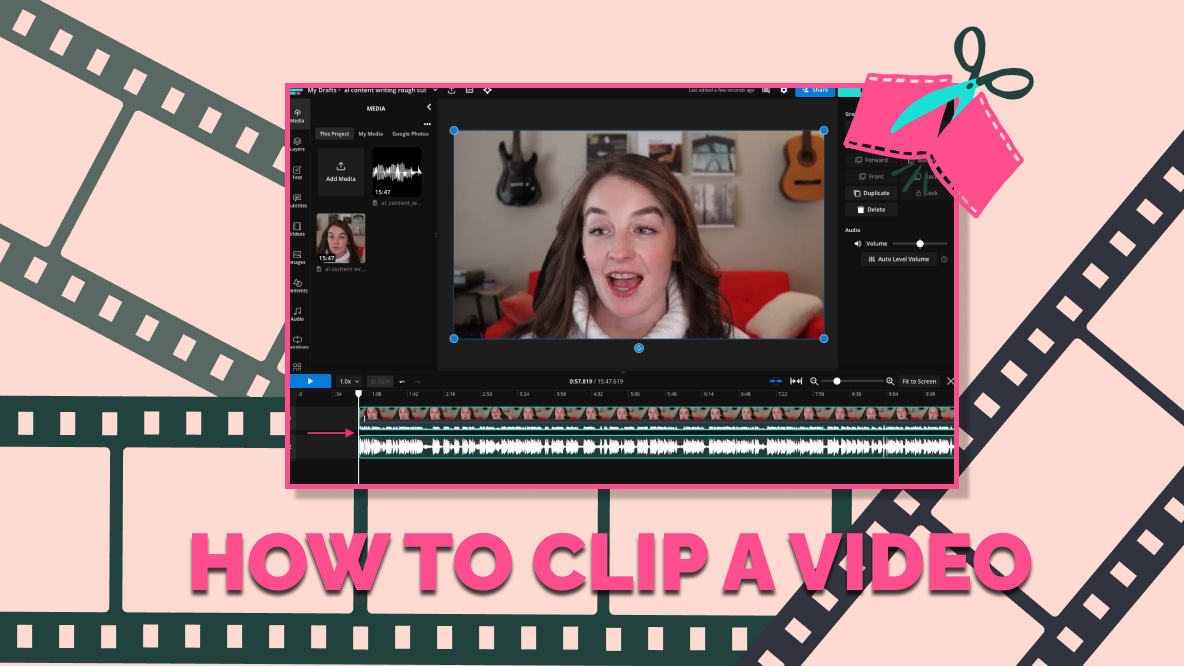
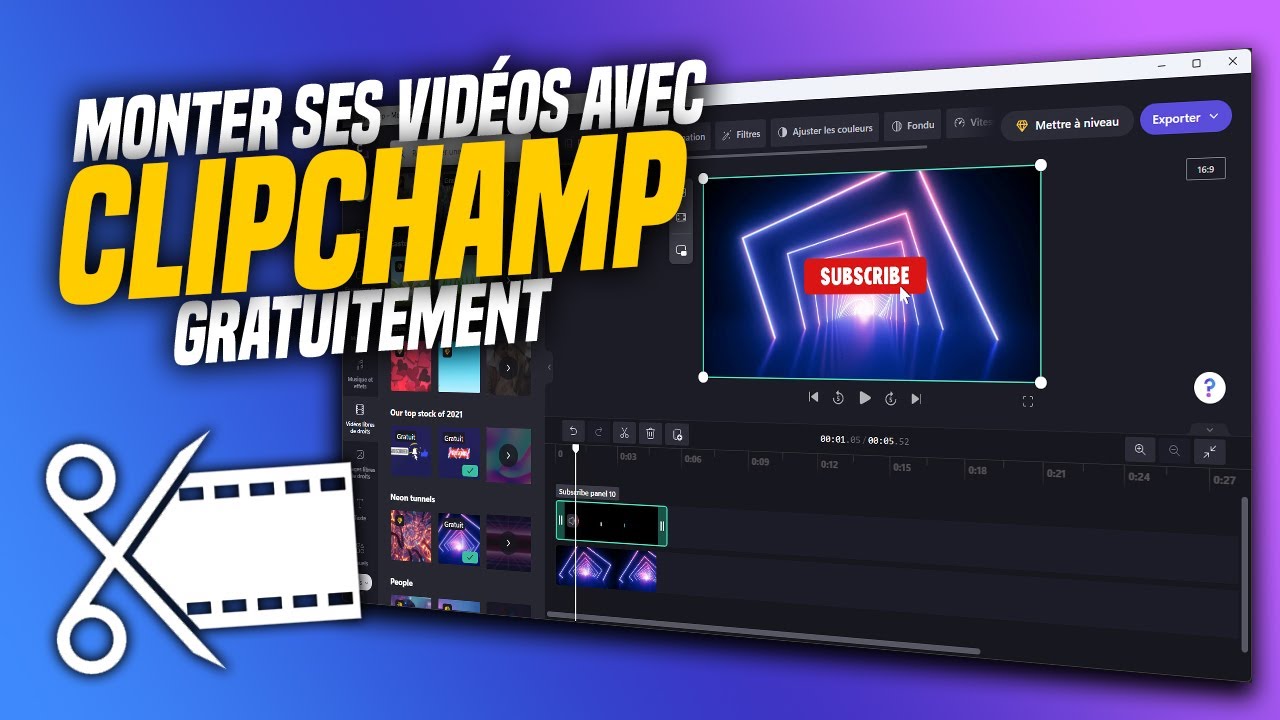
Alright, time to put those photos in motion! Import everything into your chosen editing tool and start arranging the clips on the timeline.
Sync the photos to the beat of the music. This is crucial! Use the music's rhythm as a guide to determine how long each photo stays on screen. Faster songs will generally require shorter clips, while slower songs allow for longer, more lingering shots. Most editing software allows you to trim and adjust the duration of each photo precisely.
Transitions are your friend! But don't overdo it. A simple fade or cross-dissolve can create a smooth and seamless flow between photos. Avoid anything too flashy or distracting, unless it fits the overall aesthetic you're going for. Think subtle and elegant, not chaotic and seizure-inducing.
Add some *pizzazz* with text overlays! Song lyrics, titles, or even funny captions can enhance the storytelling and add personality to your video. Experiment with different fonts, colors, and animations. But remember, legibility is important! Don't choose a font that's impossible to read, no matter how "cool" it looks.
Consider adding some panning or zooming effects to your photos to create a sense of movement. This is especially effective for static images. But again, use sparingly! Too much zooming can be nauseating.
Finishing Touches (aka The Polish)
Once you've arranged all your photos, added music, and applied transitions, it's time for the final polish. Watch the entire video from start to finish, paying attention to the pacing, timing, and overall flow.
Does everything feel cohesive? Are there any awkward transitions or jarring moments? Tweak and refine until you're happy with the result.
Finally, export your video in a high-resolution format (e.g., 1080p) for optimal viewing quality. And that's it! You've officially created a music video using photos! Go forth and share your masterpiece with the world... or at least with your niece who's expecting a Mittens tribute.
Now, if you excuse me, I have a cat video to upload... wish me luck!

![Comment Faire Un Clip Video Avec Photos [Tuto] Faire un clip ! – Montage vidéo | Movie Studio Platinum 13 - YouTube](https://i.ytimg.com/vi/07iz1Gk9Aks/maxresdefault.jpg)
