Comment Faire Fonctionner Son Microphone Sur Pc
Alright, alright, settle down, mes amis! You wanna be a voiceover superstar, a Discord dominator, or just have your grandma finally hear you properly on Skype? Then you, my friend, need to master the arcane art of… the microphone! On your PC! Fear not, for I, your humble internet guide, am here to demystify this technological marvel.
First things first, and this might sound crazy, but is it plugged in? I know, I know, sounds obvious. But trust me, I've spent an embarrassing amount of time troubleshooting only to discover… yeah, unplugged mic. It's like searching for your glasses while they're on your head. We’ve all been there, haven't we? Don't be ashamed.
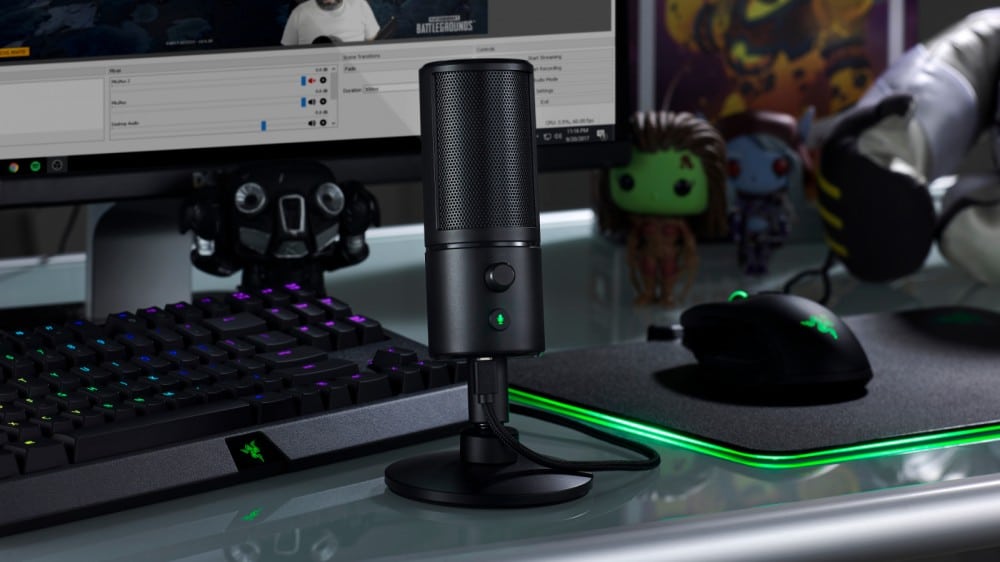
Now, assuming it IS plugged in (bravo!), where's it plugged into? Is it a fancy USB microphone? Wonderful! Those are generally plug-and-play. Or is it a good old-fashioned 3.5mm jack? If so, is it in the correct hole? I know what you’re thinking, but on your computer, the pink one with the microphone icon is usually the one you want. Don't go shoving it into the headphone jack and then complaining your voice sounds like Darth Vader gargling with gravel.
Check Your Windows Settings (The Rabbit Hole)
Okay, microphone plugged in correctly? Excellent! Now prepare yourself, for we are about to descend into the depths of Windows settings! Don't worry, I'll hold your hand... metaphorically. I can't actually reach through the internet. Although wouldn't that be amazing?
Right-click that little speaker icon in the corner of your screen. You know, the one that looks like it's yelling at you? Select "Open Sound settings." This is where the magic (or madness) happens.
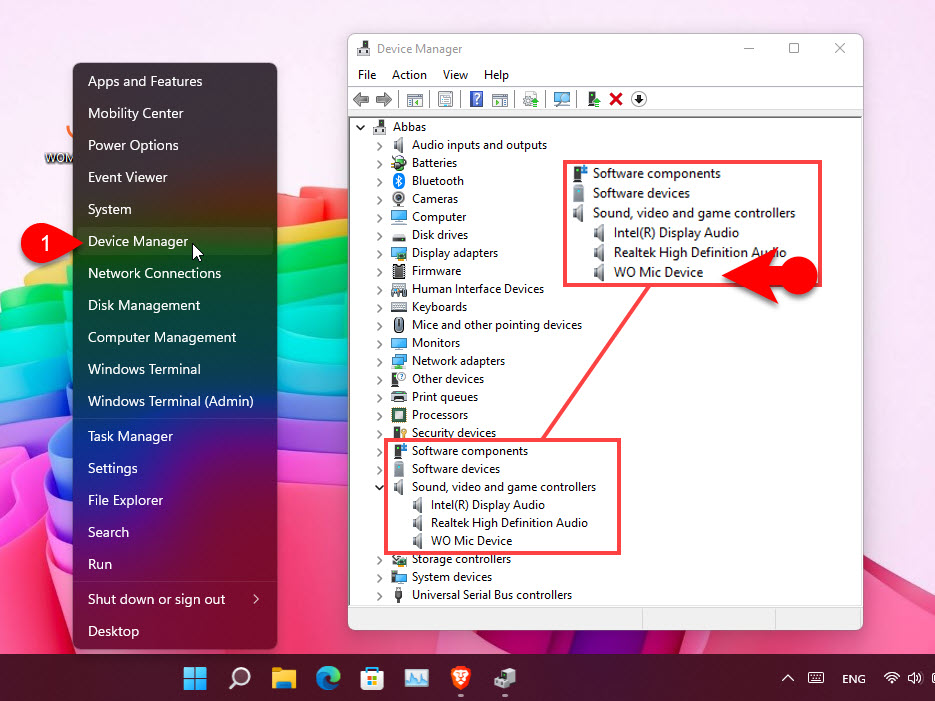
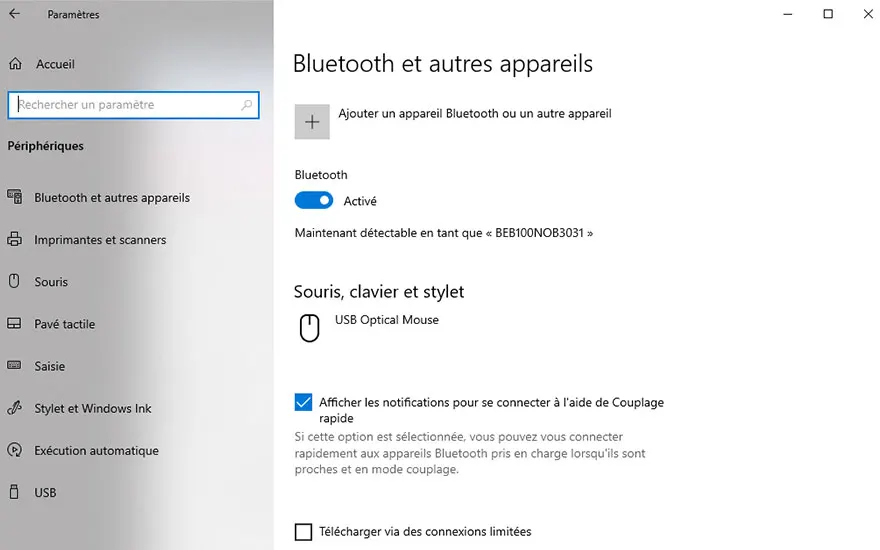
Scroll down (or up, depending on your monitor orientation – are you defying gravity today?) to the "Input" section. You should see a dropdown menu with your available microphones. If your mic isn't listed, panic! Just kidding. Probably. Click the "Manage sound devices" link below the input selection dropdown.
Now, look under "Input devices" and see if your microphone is listed but disabled. Windows can be a bit dramatic sometimes, arbitrarily deciding your mic is no longer worthy. If it’s disabled, click on it, and then click the "Enable" button. Victory! You have wrestled control back from the digital overlords.
Still no mic? Okay, deep breaths. Click on "Sound Control Panel" on the right side of the Sound settings page. A smaller window will pop up. Go to the "Recording" tab. This is where all your microphones will congregate, if they're feeling social.
If your microphone is listed, but with a little grey arrow pointing down, it's disabled. Right-click it and choose "Enable." If it *still* isn't showing up, right-click in the empty space in the window and make sure "Show Disabled Devices" and "Show Disconnected Devices" are both checked. Windows likes to play hide-and-seek, apparently.
The Volume Conspiracy
Microphone detected but sounding fainter than a whisper in a hurricane? It’s probably a volume issue. Back in the "Sound Control Panel" under the "Recording" tab, find your microphone and double-click it. This opens the "Microphone Properties" window. Navigate to the "Levels" tab.
Here you'll find a slider controlling your microphone's input volume. Crank it up! But not too high, or you'll sound like you're shouting from inside a tin can. Experiment! Find the sweet spot where you’re loud and clear without distorting. The magic number usually lies between 75 and 90... but don't tell anyone I told you that. It’s a secret.
Also, there's often a "Microphone Boost" slider. Use this sparingly! It amplifies the signal, but also amplifies any background noise, turning your recording studio into a cacophony of barking dogs, screaming children, and the faint hum of your refrigerator plotting against you.
Software Shenanigans (Discord, Skype, etc.)
So your microphone works perfectly in Windows, but your friends on Discord still can't hear you? Ah, the joy of software settings! Each program has its own audio configuration. Dive into the settings of Discord, Skype, Zoom, or whatever communication tool you're using, and make sure the correct microphone is selected as the input device. And double check that the input volume is set correctly within the app itself. Sometimes software is just plain stubborn.
Pro tip: many apps have a "Test Microphone" feature. Use it! Speak into your microphone and see if you can hear yourself. If you can't, you're still not quite there, my friend. But don’t give up!
The Ultimate Solution (When All Else Fails)
Still struggling? Have you tried turning it off and on again? I know, it's a cliché, but it works surprisingly often. Unplug your microphone, restart your computer, and plug it back in. It’s the digital equivalent of a good whack on the side. Sometimes, a little brute force is all you need.
And finally, if all else fails, and you're starting to question your sanity, consult the manufacturer's website for your microphone. They may have specific drivers or troubleshooting tips. Or, just maybe, your microphone is simply broken. Hey, it happens. At least you can blame the technology, and not yourself.
Now go forth, my friend, and unleash your voice upon the world! May your recordings be clear, your voice be strong, and your background noise be minimal. And remember, if you ever need help, just yell really loudly. I might hear you… eventually.