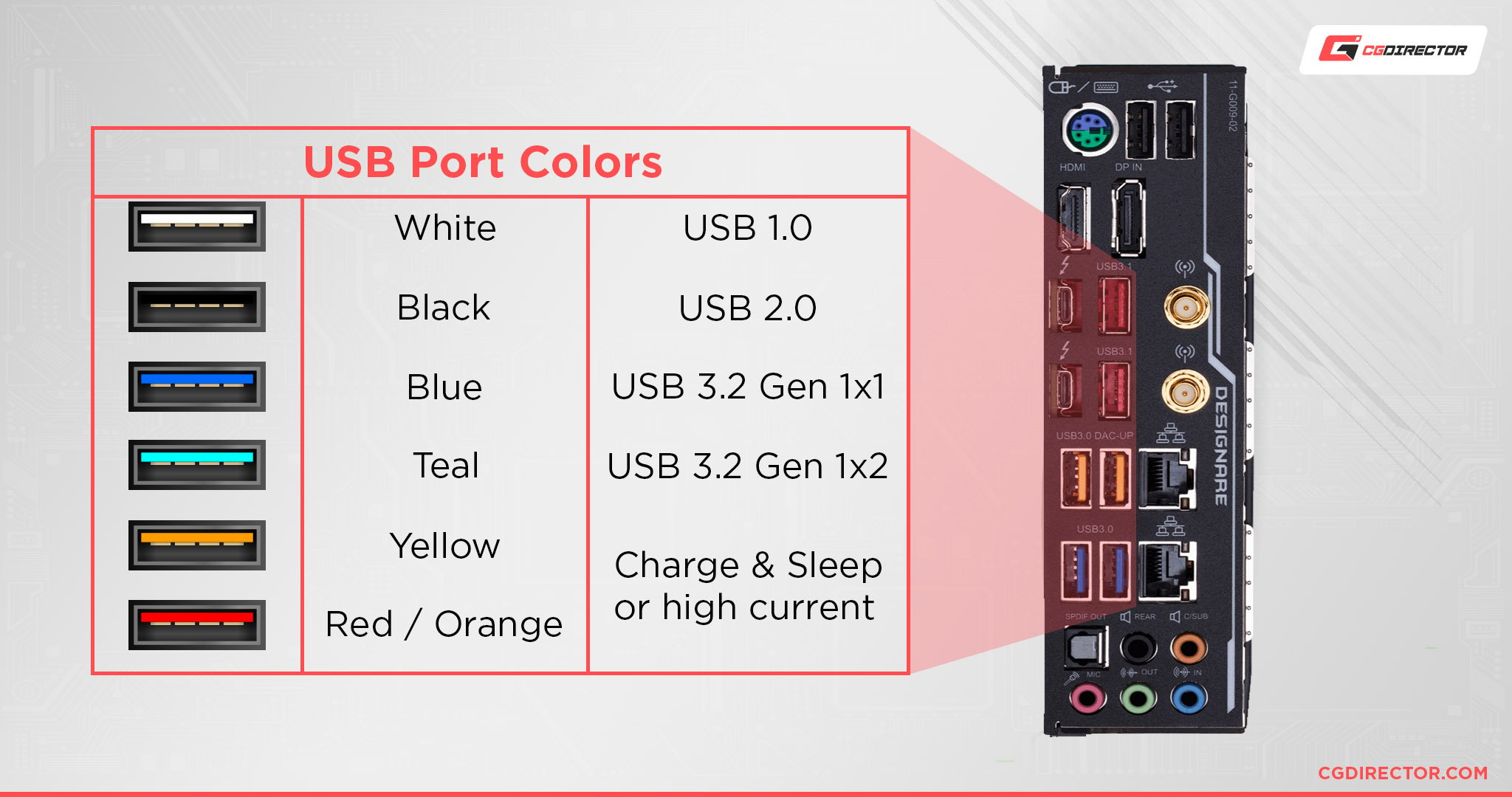
Comment Faire Fonctionner Les Ports Usb En Veille

Okay, picture this: it's 3 AM. You're jolted awake by the incessant beeping of your phone, lying mockingly on your nightstand. You fumble for it, half-blind, only to discover… it's dead. Completely and utterly devoid of life. And, horror of horrors, you *swore* you plugged it in before going to bed. But your computer, bless its heart, decided to take a power nap too and switched off the USB ports. Sound familiar? (Don't lie, it happens to the best of us!).
This, my friends, is the saga of the USB port in standby mode. Or, as we like to call it, the "why-won't-my-stuff-charge-when-the-computer-is-off" conundrum. Luckily, it’s a problem with a solution! We're going to dive into how to make those USB ports actually *work* while your computer is sleeping. Because, let's be honest, we all need that charging power, especially at 3 AM.
Pourquoi Mes Ports USB Sont-Ils Morts En Veille ?
Before we jump into fixing things, let's understand why this happens in the first place. Most computers, by default, cut power to the USB ports when they enter sleep mode or are shut down completely. This is a power-saving feature, which is great for the environment and your electricity bill, but terrible for your phone’s battery life. Basically, your computer is being all eco-friendly and thinking about its carbon footprint, while your phone is staging a silent protest on your nightstand.
The idea is that when your computer is not actively being used, it doesn't need to supply power to anything connected to the USB ports. Makes sense, right? (Sort of. But what about those late-night charging needs!).
Réveiller les Ports USB Endormis : Le Guide Étape Par Étape
Alright, enough with the explanations. Let’s get those USB ports working! There are a couple of different methods to achieve this, depending on your operating system. We'll start with Windows (because, let's face it, most of us are Windows users).
Sous Windows :
Méthode 1: Gestionnaire de Périphériques (Device Manager)
- Go to your "Start" menu and search for "Device Manager." (Or, if you're feeling fancy, right-click the Start button and select "Device Manager").
- Expand the "Universal Serial Bus controllers" section.
- You'll see a list of USB Root Hubs. Right-click on each one and select "Properties." (Yes, you'll have to do this for each one. Sorry!).
- Go to the "Power Management" tab.
- Uncheck the box that says "Allow the computer to turn off this device to save power." (This is the culprit!).
- Click "OK."
Important: Repeat this process for every USB Root Hub in the list. I know, it's a bit tedious, but trust me, it's worth it when your phone is fully charged in the morning.
Méthode 2: Options d'alimentation (Power Options)
- Go to your "Start" menu and search for "Power Options."
- Click on "Change plan settings" next to your selected power plan.
- Click on "Change advanced power settings."
- Scroll down to "USB settings" and expand it.
- Expand "USB selective suspend setting" and set it to "Disabled."
- Click "Apply" and then "OK."
This setting prevents Windows from selectively suspending USB devices to save power. Which, in turn, means your USB ports should stay active even when the computer is in sleep mode.
Sous MacOS (C'est un peu plus simple!)
Okay, Mac users, you're in luck. Generally, Macs are better at providing power to USB ports in sleep mode by default. But if you're having issues, here's a quick check:
While there is not direct control on USB power management as in Windows, ensure that "Wake for network access" is enabled under Energy Saver settings in System Preferences. This can influence USB power behaviour in sleep mode.
Tip: Sometimes, it's also worth checking your System Preferences > Energy Saver > Schedule. Make sure you haven't accidentally scheduled your computer to shut down completely at night. Because that will definitely stop your USB ports from working!
Un Dernier Conseil (Juste Pour Être Sûr)
Even after making these changes, some computers are just stubborn. They refuse to cooperate. In those cases, check your BIOS settings. (Consult your motherboard manual for how to access your BIOS - it usually involves pressing a key like Delete, F2, or F12 during startup.) Some BIOS settings allow you to specifically enable USB power during sleep mode. It's a bit more technical, but it's worth a shot if nothing else works.
And there you have it! Hopefully, with these tips, you'll never again wake up to a dead phone. May your USB ports always be powered, and your batteries always be full! (Now, if you'll excuse me, I need to go plug in my own phone… just in case!).







![Comment Faire Fonctionner Les Ports Usb En Veille Forme des ports usb [Résolu]](https://img-19.ccm2.net/9BHCtVMjrwR67Dy8o4OuTLzvAd0=/be1d6b03e2e245c48694f5de16124e4c/ccm-ugc/20180615114654_39272.jpg)