Ajouter Un Fond Sur Libreoffice Page De Garde

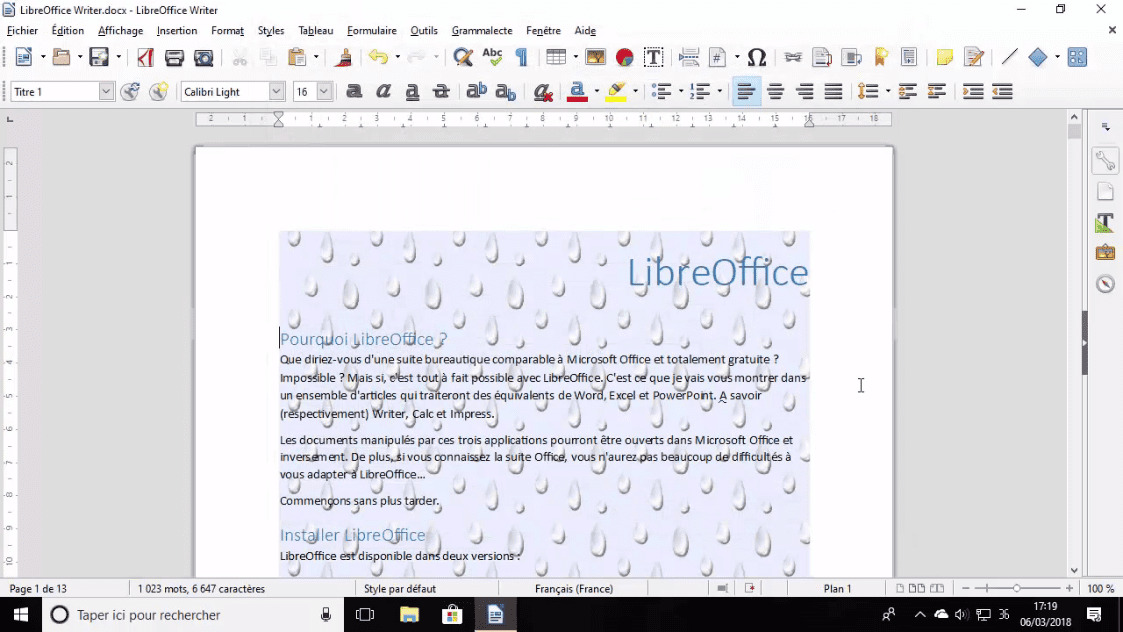
Okay, confession time. I spent, no joke, a solid hour last week trying to make a simple, presentable cover page in LibreOffice. You know, the kind that says "Hey, I'm professional, but also, I totally didn't spend all night panicking about this report." And the biggest challenge? Getting a decent background. I envisioned something subtle, maybe a light texture, or a *chic* gradient. What I actually got was a headache. Hence, this little guide. Because misery loves company, and also, I want to save you from my suffering.
So, you want to add a background to your LibreOffice cover page? Let's get this show on the road. Warning: Prepare for some unexpected clicks and a potential detour into the depths of formatting options. But fear not, we'll get through this together!
Understanding the Options
First things first, it's good to know *what* we're working with. LibreOffice isn't exactly Photoshop, so temper your expectations (unless you're a LibreOffice wizard, in which case, teach me your ways!). We have a few basic routes we can take:
- Direct Formatting: Applying the background directly to the page style. This is generally the cleanest approach and makes sure your background extends to the margins.
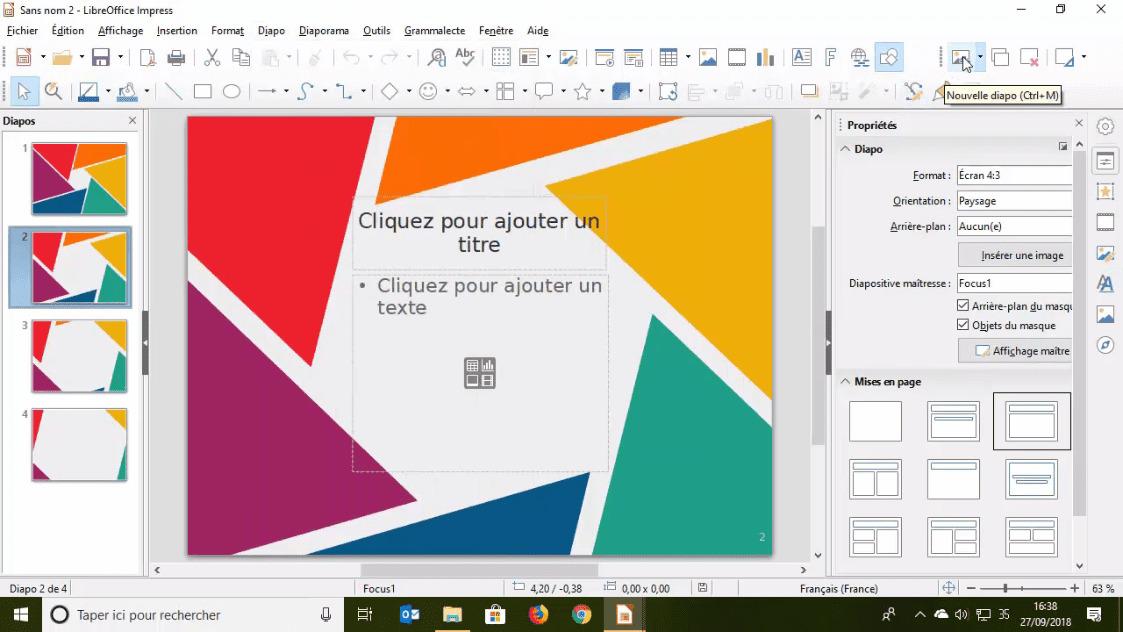
- Using Shapes: Inserting a shape (like a rectangle) and filling it with a color or gradient. This offers more control but can be a bit fiddly to manage. Think of it as "artistic freedom...with consequences".
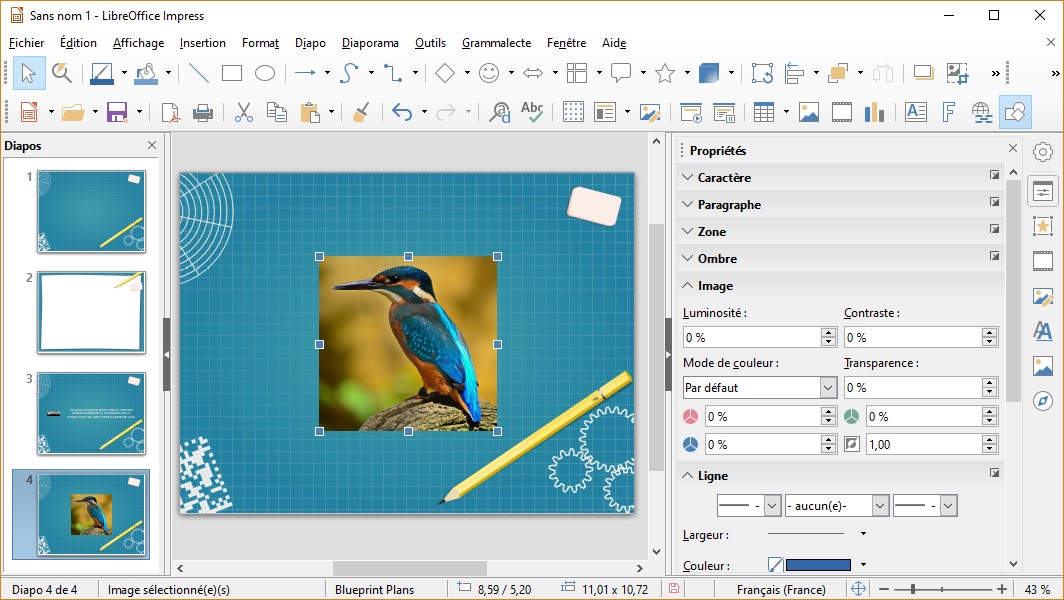
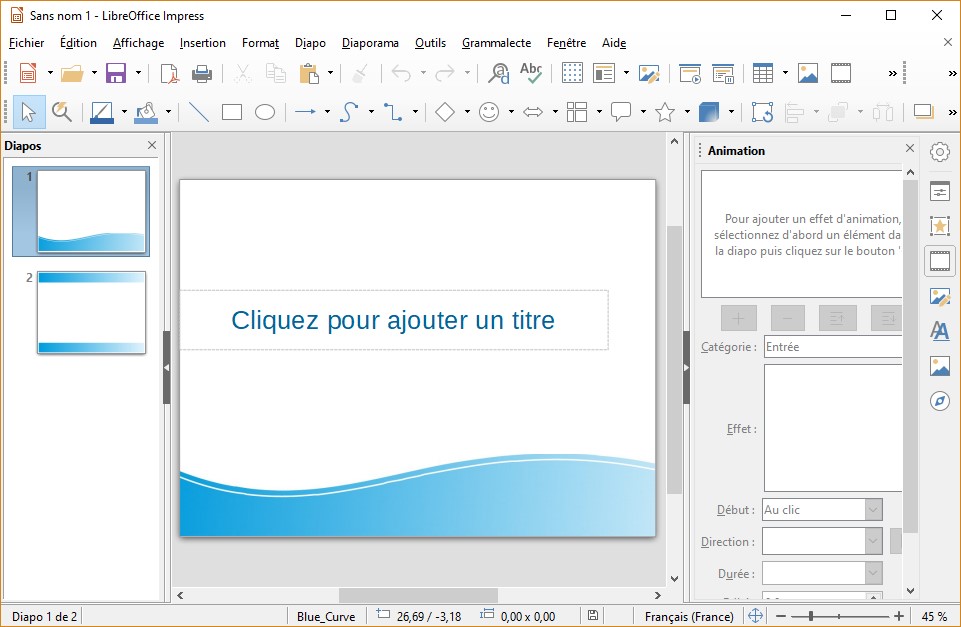
- Importing an Image: Adding an image as a background. Great if you have a specific texture or pattern in mind, but be mindful of resolution and file size. Nobody wants a 10MB cover page.
The "Clean" Method: Formatting the Page Style
This is the approach I usually recommend, especially for beginners. It's generally the most stable and avoids issues with shapes moving around unexpectedly.
Step-by-Step Guide
- Open your LibreOffice document and go to your cover page.
- Go to the *Styles* menu (usually on the right side, or press F11).
- Right-click on the "First Page" style (or whichever style is applied to your cover page) and select "Modify...".
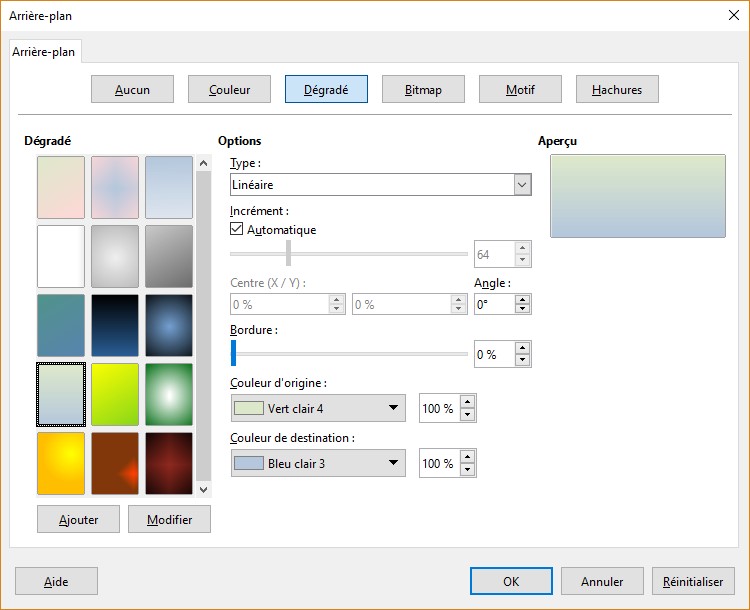
- In the "Page Style: First Page" dialog, go to the "Area" tab.
- Here, you have a few options:
- Color: Choose a solid color. Simple, but effective for a minimalist look.
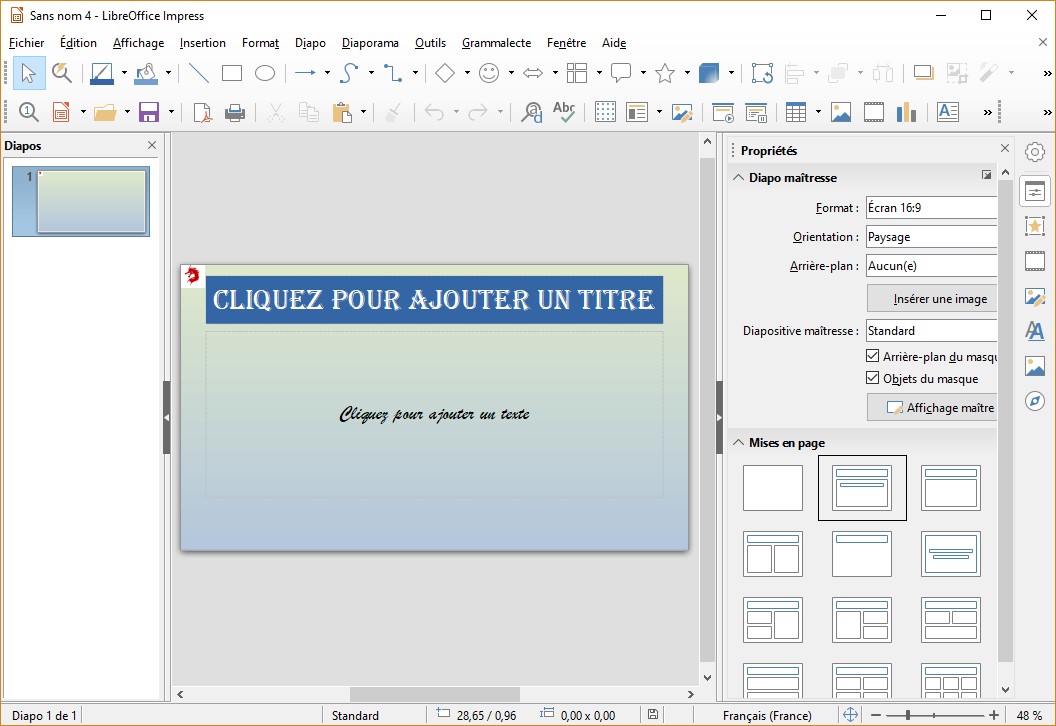
- Gradient: Select a gradient. Experiment with different presets and angles. Be careful not to go too crazy – keep it subtle!
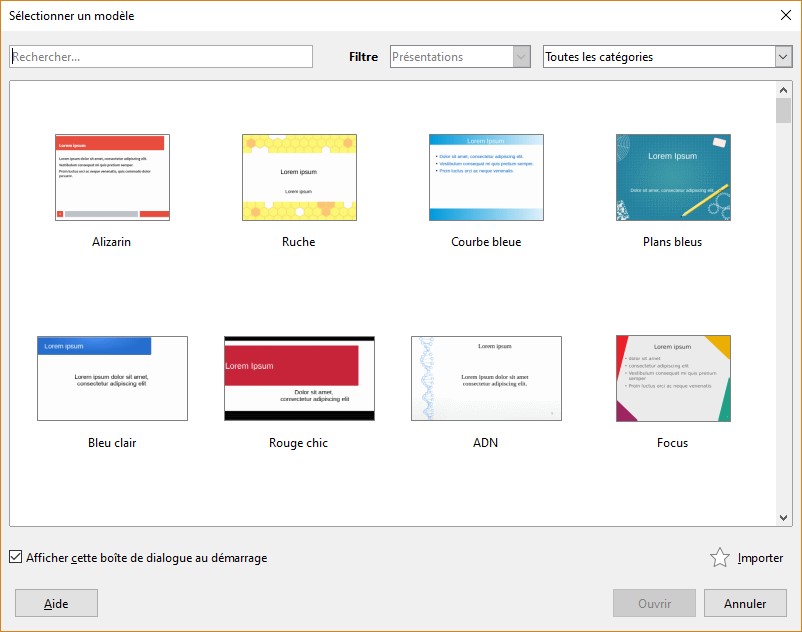
- Bitmap: Select a bitmap image. This is where you can use a texture or pattern. Make sure it's tileable if you want it to repeat seamlessly.
- Adjust the settings to your liking. Play around! That's the best way to learn.
- Click "Apply" and then "OK". Voila! Your cover page now has a background.
(Side note: If you don't see it, go to View -> Styles.)
Important: This is key! If you modify the *wrong* style, you'll mess up the formatting of other pages.
The "Creative" Method: Using Shapes
If you need more granular control, you can use shapes. This is where you can get really creative...or really frustrated.
Why Choose Shapes?
- Transparency Effects: Shapes allow you to easily adjust the transparency of the background.
- Overlapping Elements: You can layer shapes to create more complex designs.
- Custom Gradients: You have more control over the gradient's colors and stops.
The Downside?
Shapes can be a pain to manage. They can move around, get behind text, and generally cause formatting headaches. Make sure to anchor them to the page and set their wrapping to "In Background". (Right-click on the shape -> Arrange -> Send to Back)
Adding a background to your LibreOffice cover page is perfectly doable. Experiment, have fun (or as much fun as you can have with document formatting!), and don't be afraid to undo your mistakes. And remember, even if it takes an hour, at least you'll have a cover page that screams, "I'm ready to present...after I've had a nap!".